 rPlayTV — Getting StartedrPlayTV — Getting Started
From a fresh install to live TV on your car screen.
rPlayTV includes no channels. It is a player for the playlist you already have, from your own IPTV provider. If you don't have one yet, you can still follow this whole tutorial using our free demo playlist in step 2.
Get rPlayTV from the App Store — it's free, with no account and no ads. One purchase-free download covers iPhone, iPad and Apple TV.
You need iOS or iPadOS 18 (tvOS 18 on Apple TV) or later. Video on the CarPlay screen additionally needs iOS 26 or later, including iOS 27 — on iOS 18 the car screen is audio‑only.
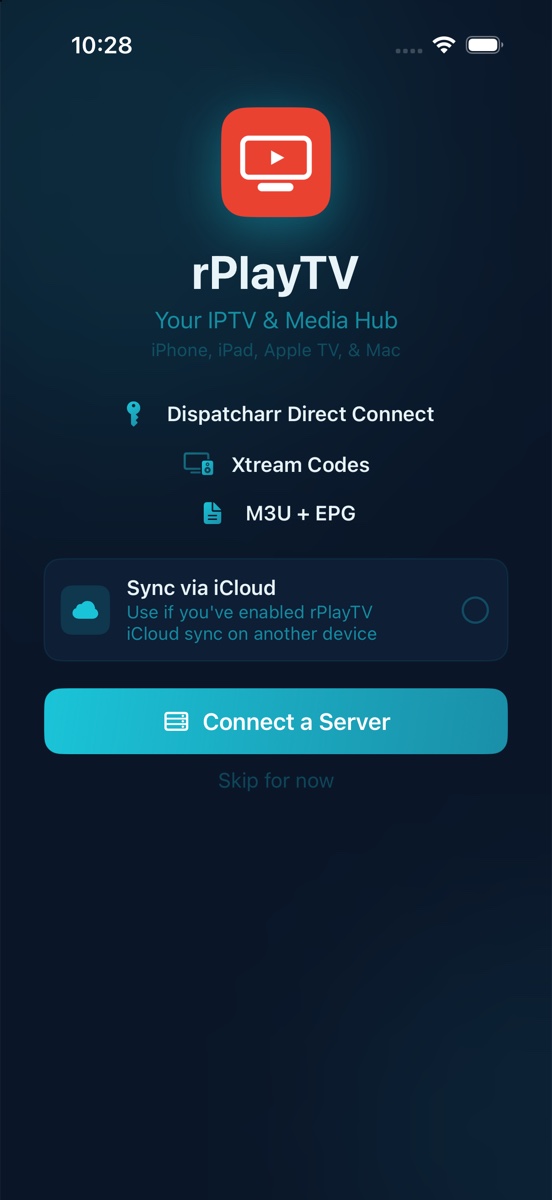
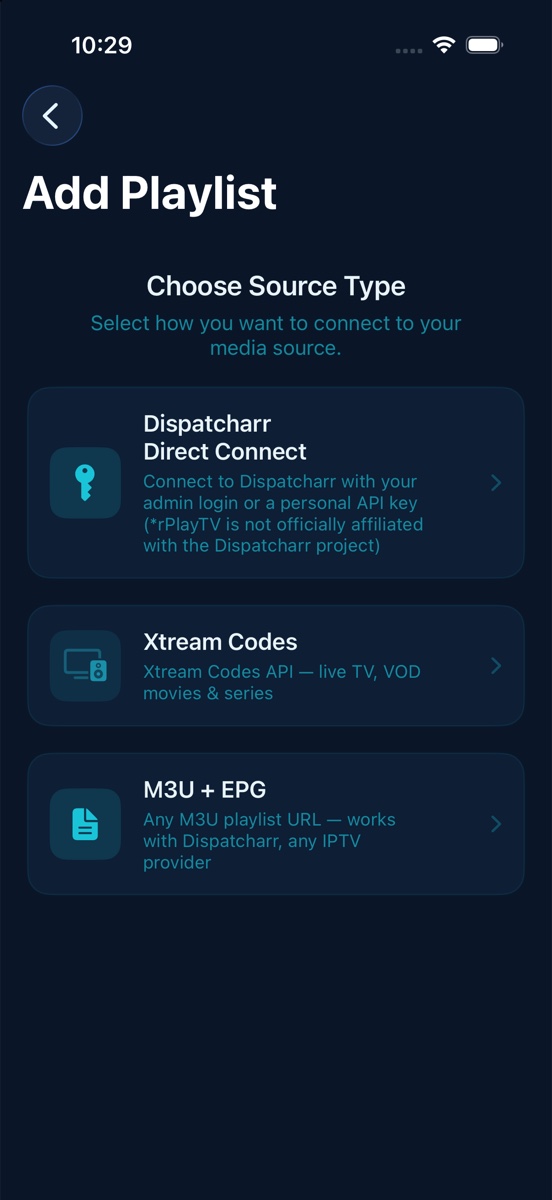
On first launch rPlayTV opens on the welcome screen. Tap Connect a Server, then pick the kind of source you have.
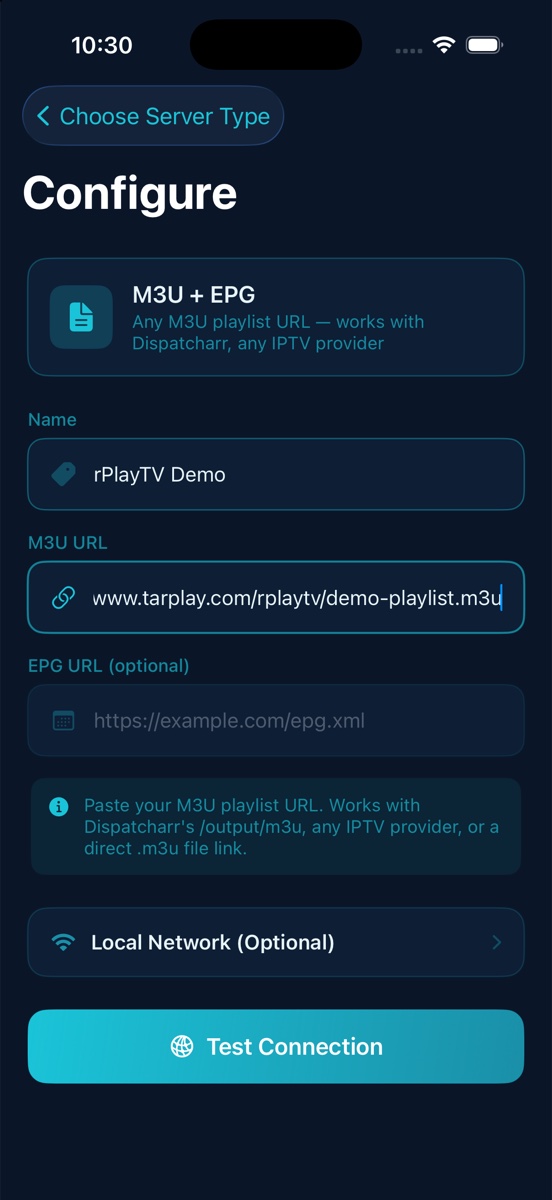
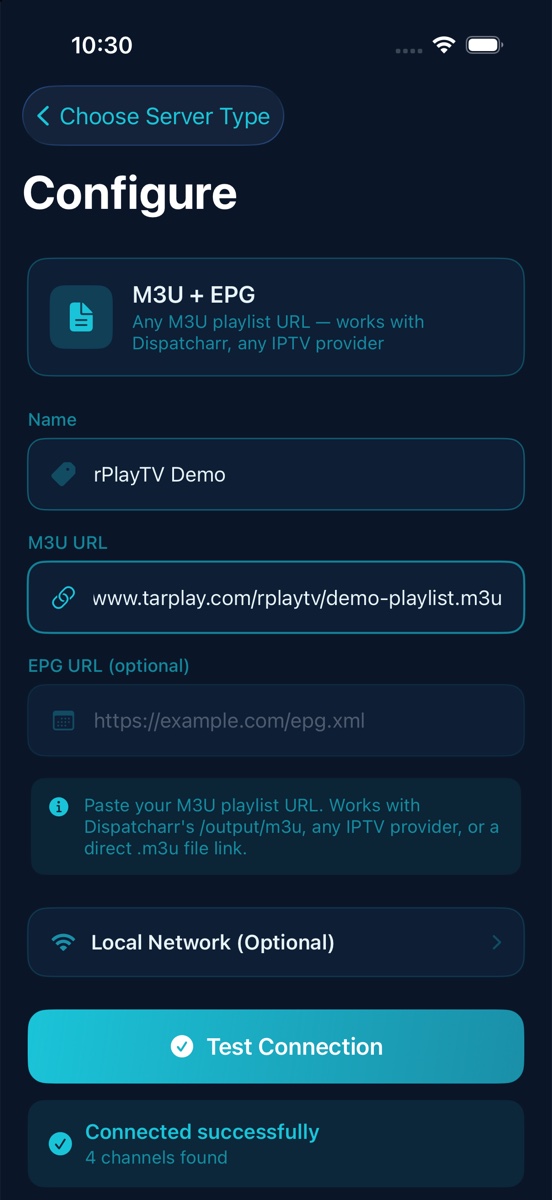
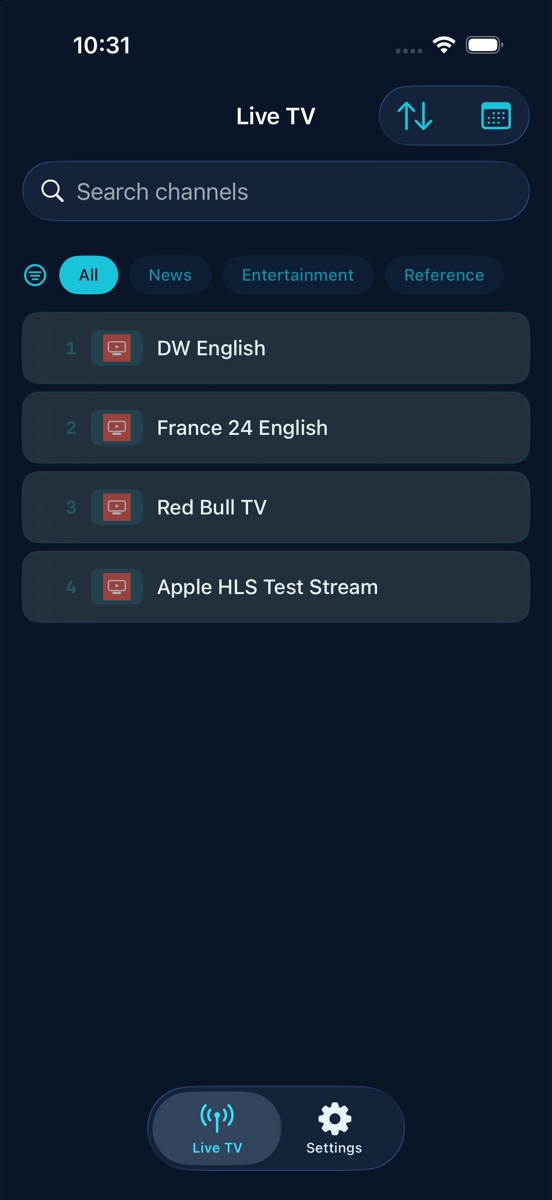
No playlist yet? Use our demo list to try the app. It carries four channels the broadcasters offer publicly — DW English, France 24 English, Red Bull TV, and Apple's HLS test stream:
https://www.tarplay.com/rplaytv/demo-playlist.m3u
Choose Xtream Codes instead, and enter the server URL, username and password. rPlayTV then loads live channels, movies and series, and the guide, in one step.
Choose Dispatcharr Direct Connect and sign in with your admin login or a personal API key. This unlocks recording to the server as well as playback. (rPlayTV is not affiliated with the Dispatcharr project.)
Channels appear under Live TV. Search by name, filter by group, and tap a channel to play it. Tap the picture once to show the controls.
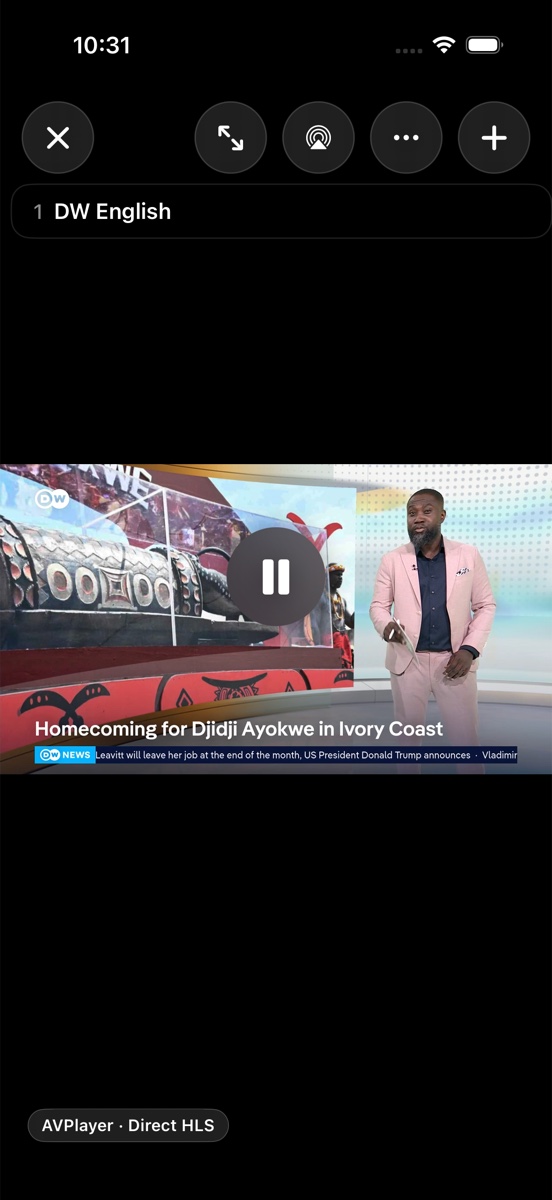
From the player you can also go full screen, hand the picture to an AirPlay or Chromecast device, or add the channel to a Multiview grid of up to nine streams.
This is the part no other IPTV player does. Connect your iPhone to CarPlay and open rPlayTV on the car display — your channel list is there, and picking one plays it on the car screen. Video on the car screen requires iOS 26 or later, including iOS 27.
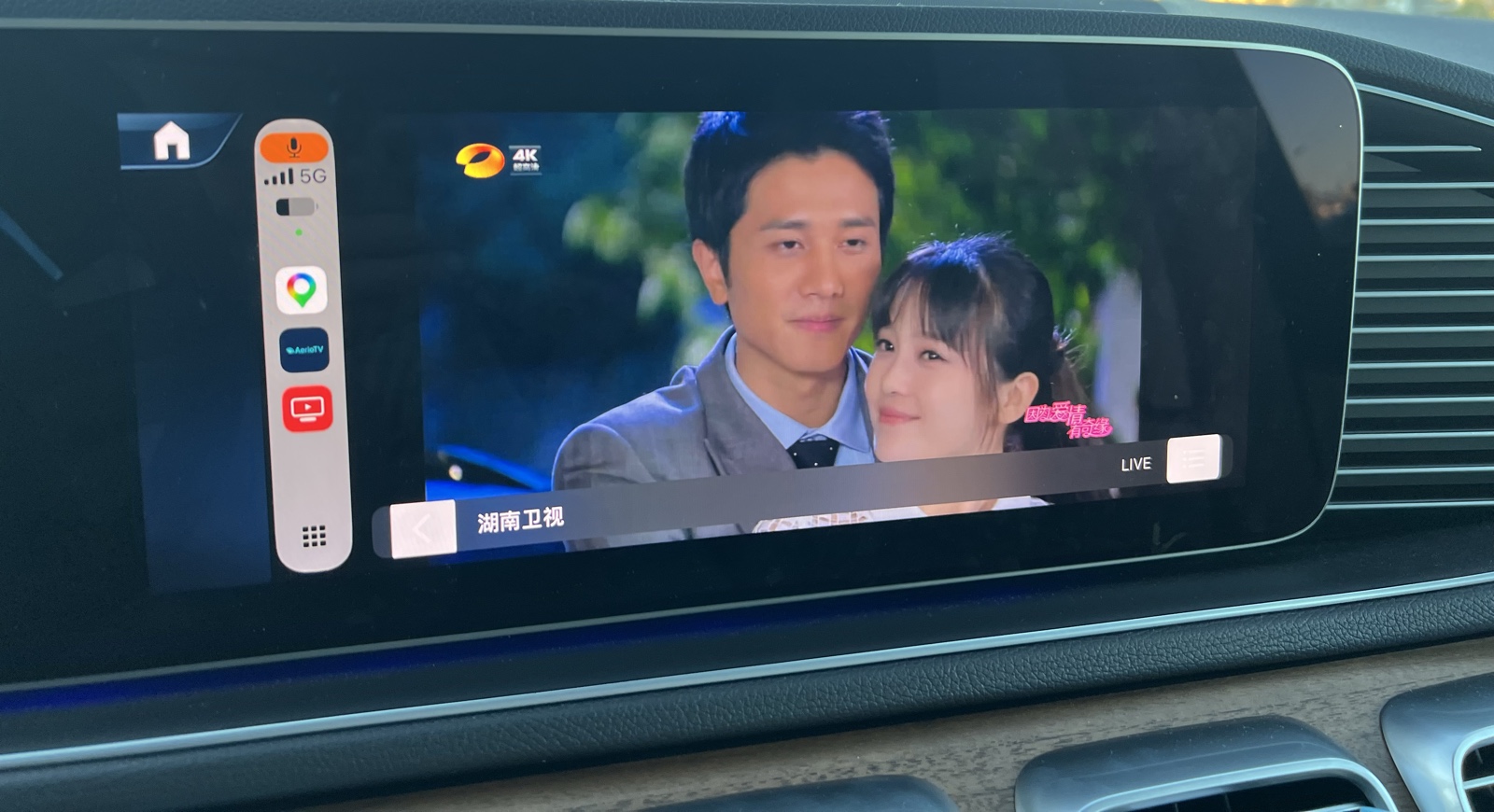
rPlayTV picks how to do this automatically, and you do not have to configure anything:
The first time video plays in a CarPlay session, a full-screen safety notice appears and must be acknowledged. Video on a car display is for passengers. Watching while driving is unsafe, and in most places illegal — you are responsible for the law where you drive.
Still stuck? Write to info@vmlite.com with your device model, iOS version, and the app version from Settings → About. For playback problems, include the channel name and your playlist type.